Q1: Does this dock work with MacBook Air or MacBook Pro?
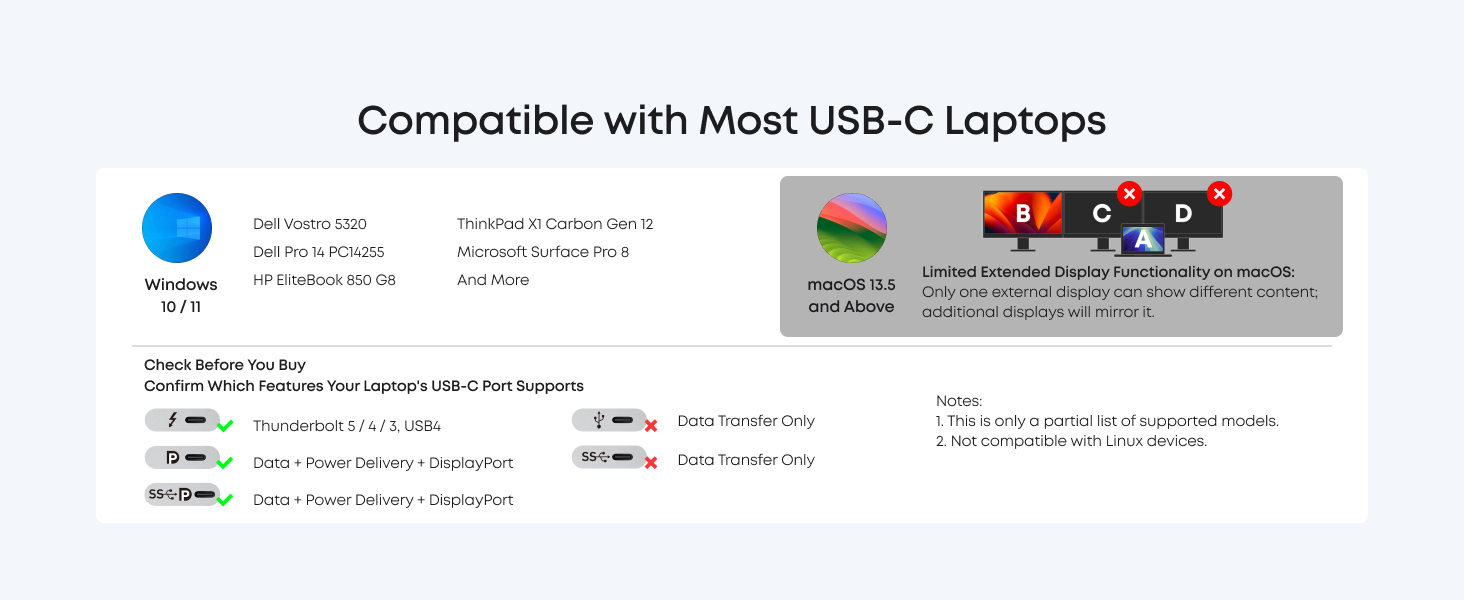
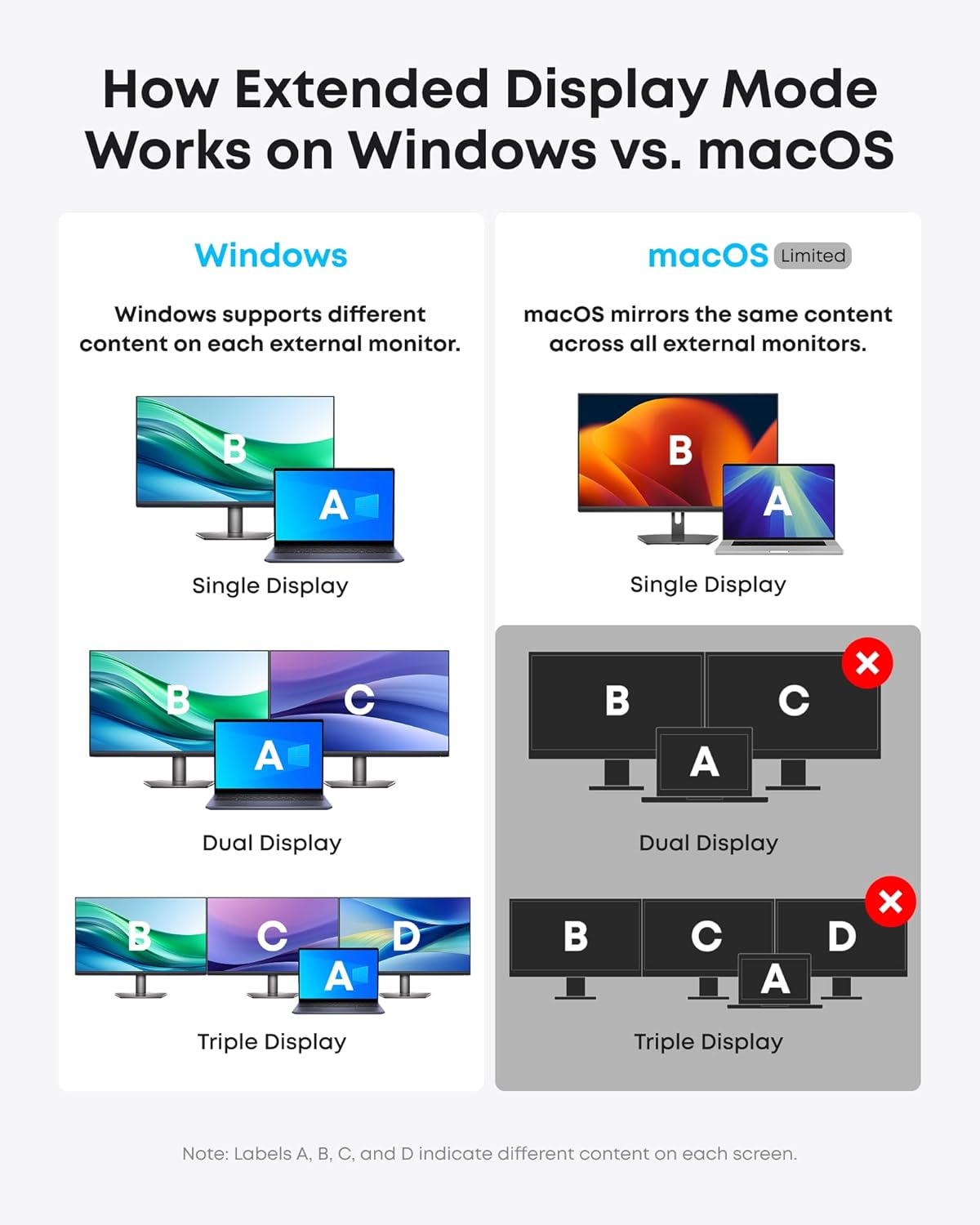
A: Charging and data work great. However, macOS limits all external monitors to mirror mode. If your workflow needs different content on each screen, use with a Windows laptop.
Q2: Can I run 3 monitors with different content? A: On Windows 10/11: Yes — extend desktop across all 3 (1080p@60Hz per screen). On macOS: mirror only (macOS limitation, not dock limitation).
Q3: Will this dock work with my Dell/HP/Lenovo laptop?
A: Works with most modern Windows laptops (Dell XPS/Latitude, HP EliteBook/ProBook, Lenovo ThinkPad, Surface Pro, LG Gram) — as long as USB-C port supports DP Alt Mode + PD.
Q4: How should I set up this dock for a home office?
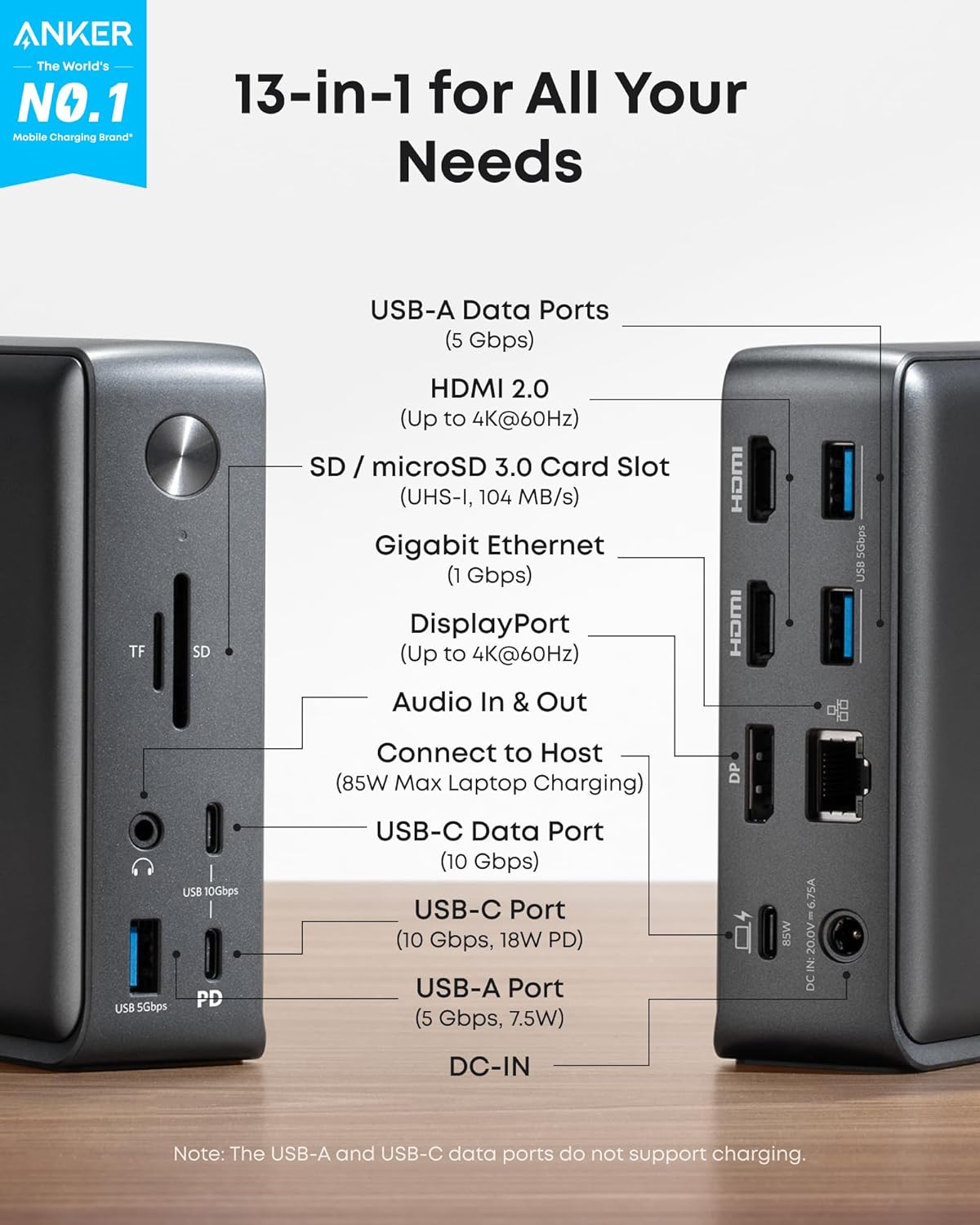
A: Plug monitors into HDMI/DP, connect keyboard/mouse/printer to USB-A, plug in Ethernet, insert SD card — then the included 3.3ft USB-C cable from the rear USB C port on the dock to your laptop. No drivers needed.
Q5: What makes this dock a better value?
A: Most budget hubs lack triple-display, Gigabit Ethernet, and SD slots. 575 includes 135W adapter (a value others charge extra for). Backed by a globally trusted charging brand.
Q6: How does it compare to Thunderbolt docks? Thunderbolt docks offer 40Gbps — ideal for 8K video editing. 575 at 10Gbps handles office work, triple monitors, and SD transfers at a fraction of the cost.
Q1: Does this dock work with MacBook Air or MacBook Pro?
Q2: Can I run 3 monitors with different content?
Q3: Will this dock work with my Dell/HP/Lenovo laptop?
Q4: How should I set up this dock for a home office?
Q5: What makes this dock a better value?
Q6: How does it compare to Thunderbolt docks?




Product description
Frequently Asked Questions:
Visit the Store
Visit the Store
Visit the Store
Visit the Store
Visit the Store
Visit the Store
Visit the Store


From the brand



![Miracase Magnetic for iPhone 17 Pro Case 6.3" [Compatible with MagSafe] Full-Body Phone Case with Built-in Glass Screen Protector & Camera Control,Drop Proof iPhone 17 Pro Cover, Deep Magenta](https://m.media-amazon.com/images/I/81xA2bgIvaL._AC_SX1500_.jpg)
![for Samsung Galaxy A15 5G Case with 2 Pack Screen Protector, 360° Rotatable Ring Holder [Luxury Hearts Pattern] Plating Gold Edge Slim Soft Phone Cover Case for Galaxy A15 - Purple](https://m.media-amazon.com/images/I/71cpgReApsL._AC_SX1500_.jpg)


